
Teams Phone calls, answered inside Dynamics 365
Your Teams Phone numbers ring in Dynamics 365, with queues, screen pop, live transcript and call logging. LiveUCX CTI for Teams, by ProUCX, works with the numbers and Teams Phone licences you already have, with no new contact-centre platform to buy or learn.
Microsoft Teams Phone · Dynamics 365 Customer Service workspace · Hosted in Australia · Australian-built & supported
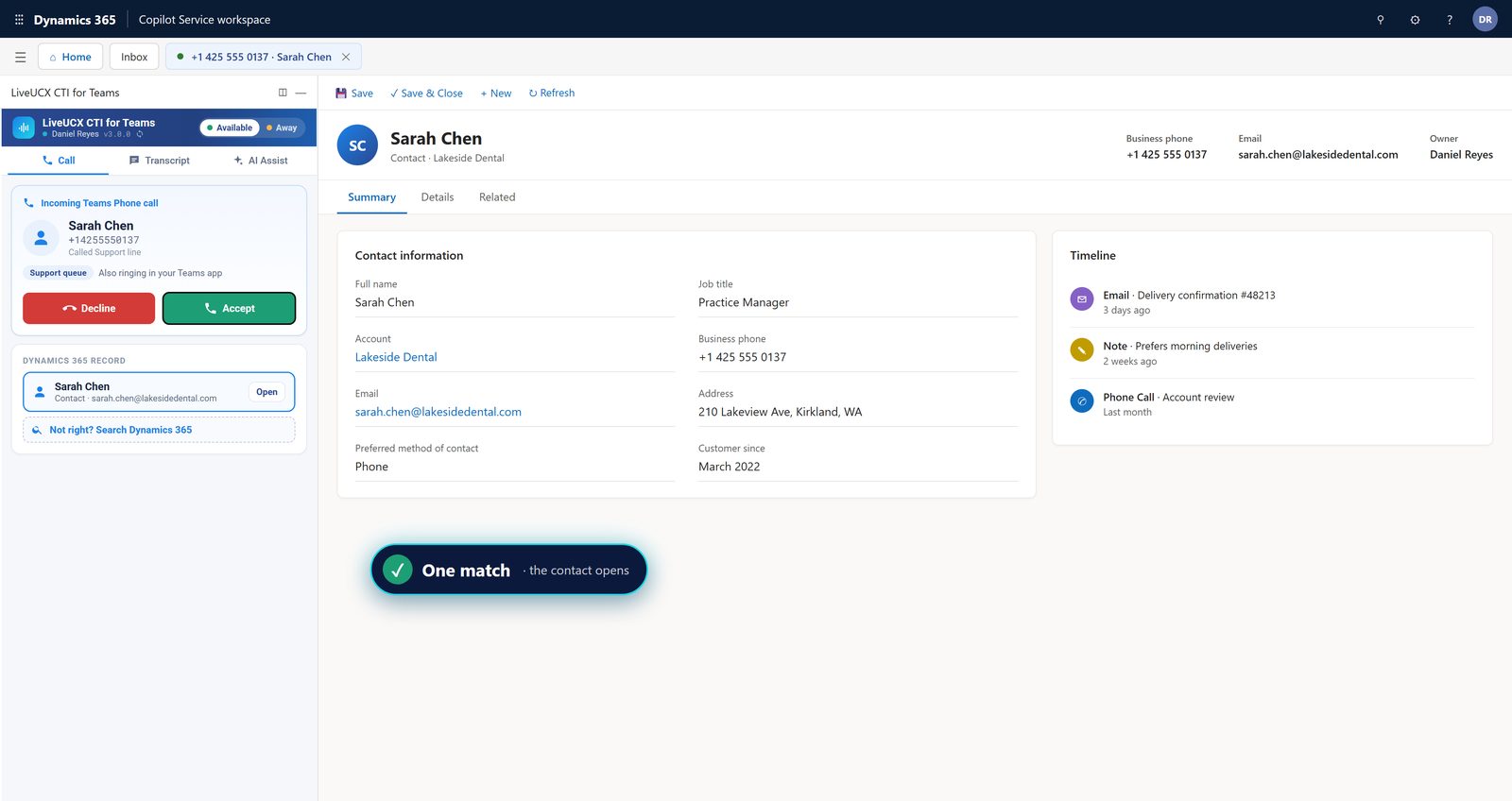

Calls arrive on the Teams Phone service numbers you already have. No new carrier, no number porting, no second phone system.

The caller's Dynamics 365 record opens while the call is still ringing, so agents greet customers by name.

Notes and a disposition at wrap-up save a completed Phone Call activity against the right contact, every time.
Watch the walkthrough
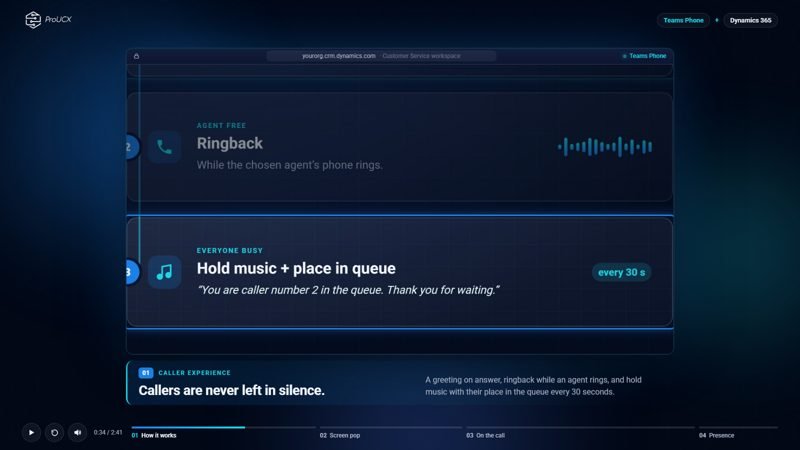
A narrated tour of LiveUCX CTI for Teams: a customer calls a Teams number, is greeted and queued, and the call rings the right agent in Dynamics 365 and in Teams. Screen pop, live transcript, wrap-up and presence, start to finish.
Stop switching between Teams and your CRM
Plenty of service teams already run their phones on Microsoft Teams and their customers in Dynamics 365. The trouble is that the two don't talk. A Teams call doesn't know who the customer is, agents search for the record by hand while the caller waits, and nothing lands on the timeline unless someone remembers to log it. LiveUCX CTI for Teams joins them up: a Teams Phone CRM integration that puts the call, the caller's record and the call log on one screen in the Dynamics 365 Customer Service workspace.
From a Teams Phone call to the right Dynamics 365 record
Three steps from dial tone to the right record, with the call logged at the end.
They dial one of your existing Teams Phone service numbers, such as your support line.
LiveUCX answers in the cloud, plays your greeting, queues the call and picks the longest-idle agent with the right skills.
The call rings in the agent's Dynamics 365 panel and in their Teams app, with the caller's record already open. A live transcript builds as they talk, and wrap-up logs the call on the timeline.
Queues and skills-based routing for your Teams numbers
Teams call queues get your calls to people. A service team needs a little more: callers who know where they stand, and calls that reach the right agent first. LiveUCX CTI for Teams gives every Teams number contact-centre behaviour without moving to a separate contact-centre platform.
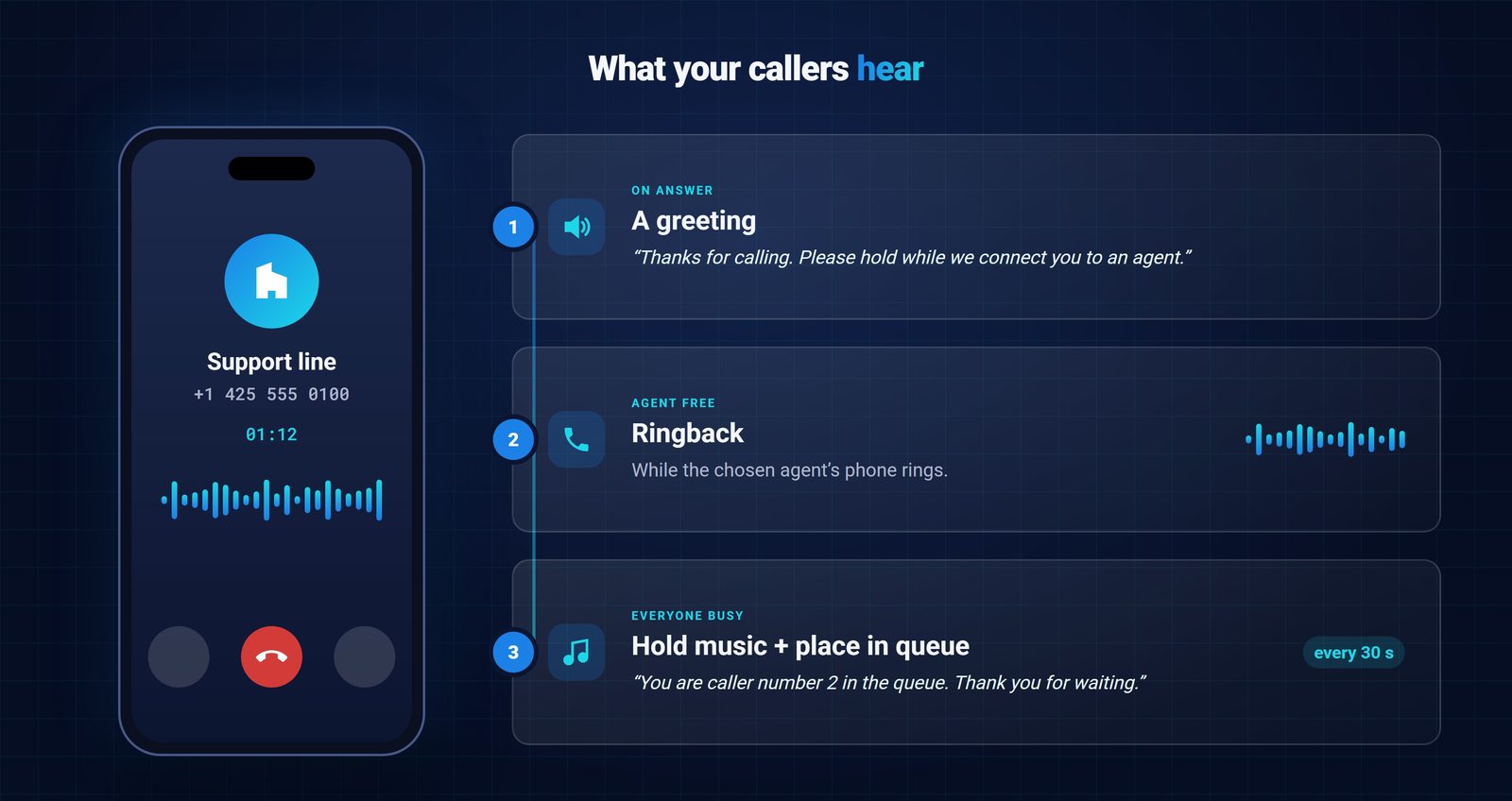

A greeting on answer, ringback while an agent's phone rings, and hold music with an update on their place in the queue every 30 seconds.

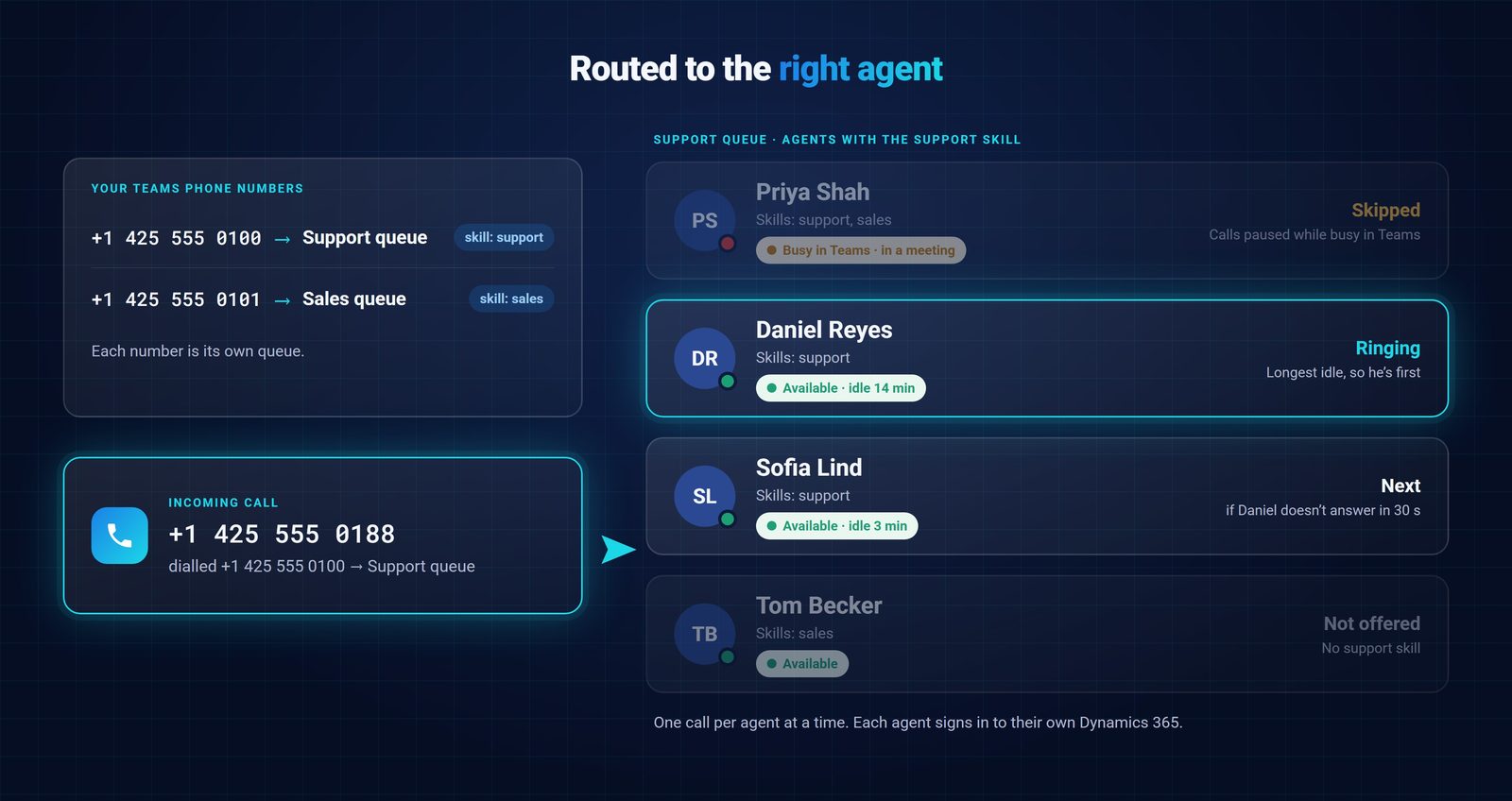
Each Teams number feeds its own queue, and agents carry skills, so a billing line and a support line reach the right people.
The agent who has been free longest rings first. No answer within 30 seconds and the call moves to the next agent. Anyone busy in Teams is skipped.
Screen pop before the agent answers
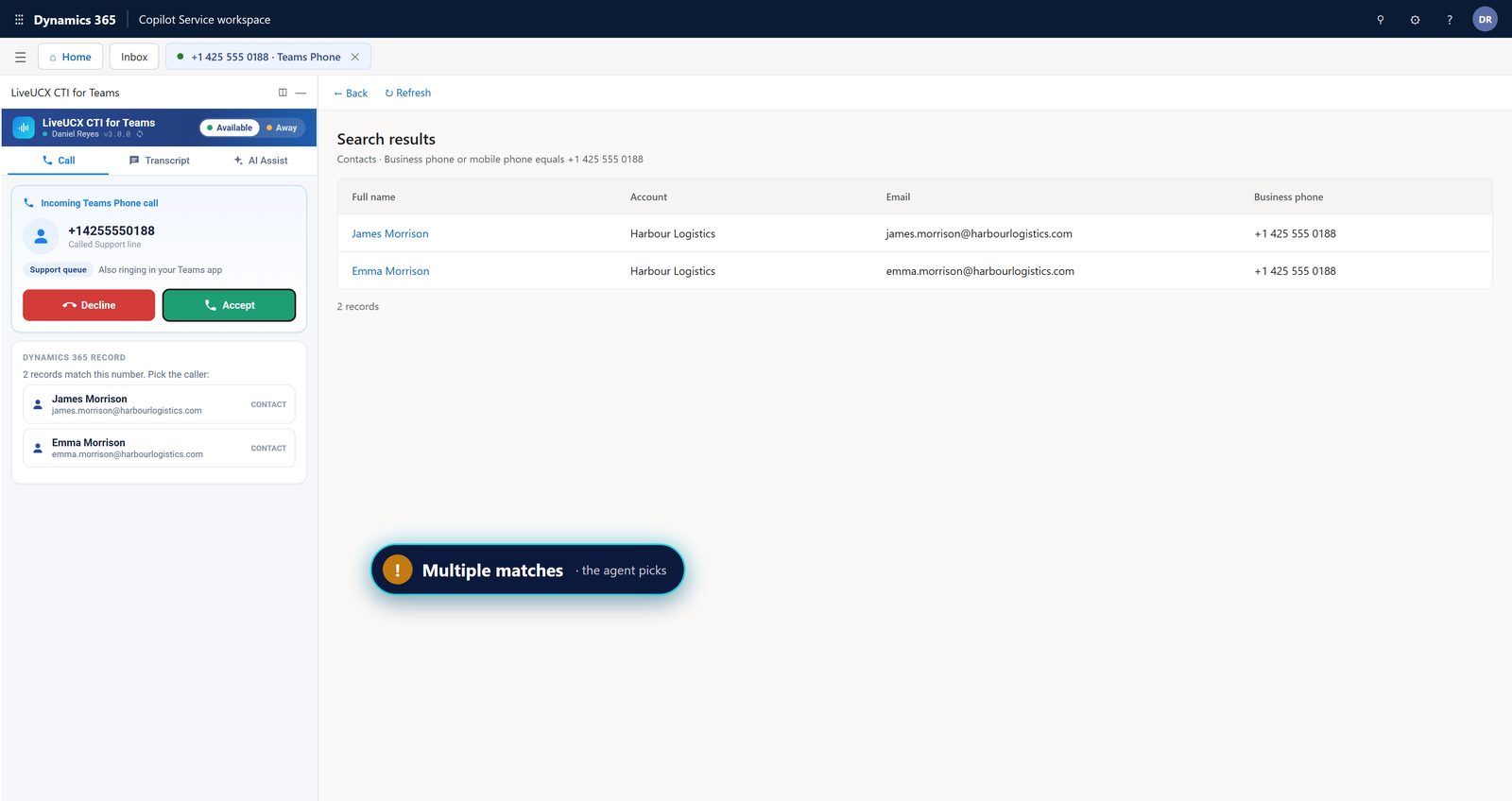
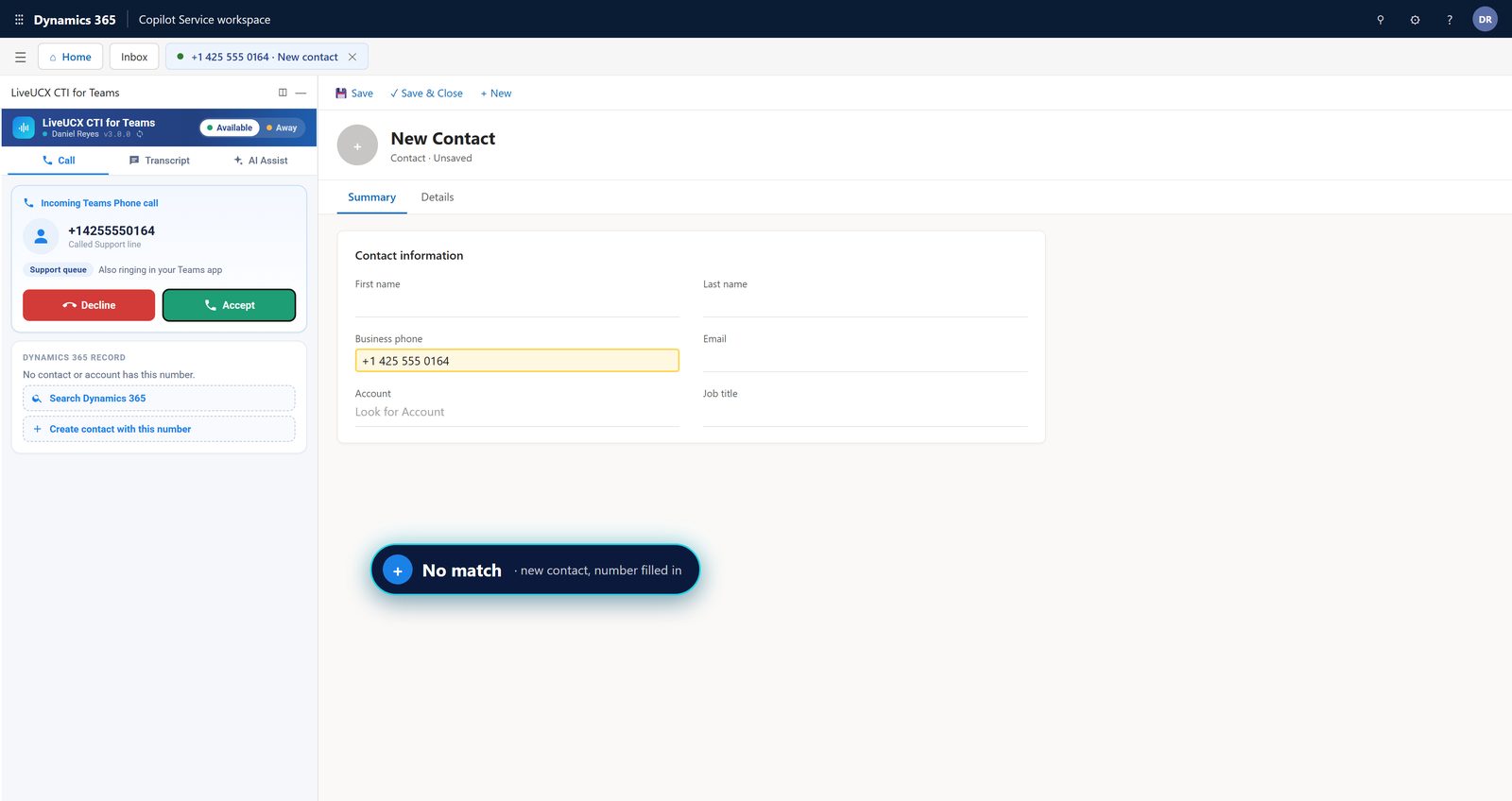
The caller's number is looked up in Dynamics 365 the moment the call is offered, before anyone picks up. What happens next depends on what it finds.
Answer in Dynamics 365, or in the Teams app
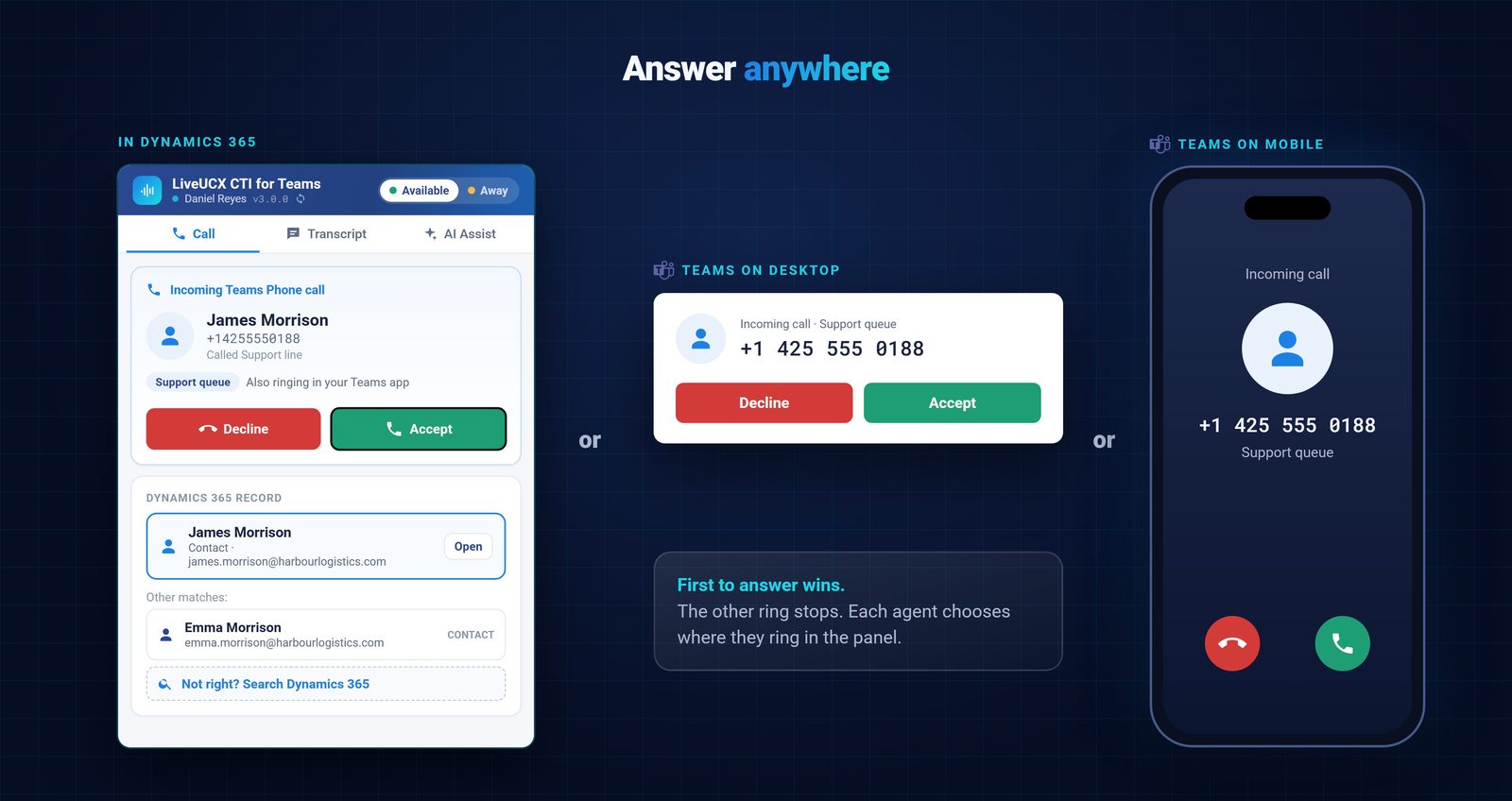
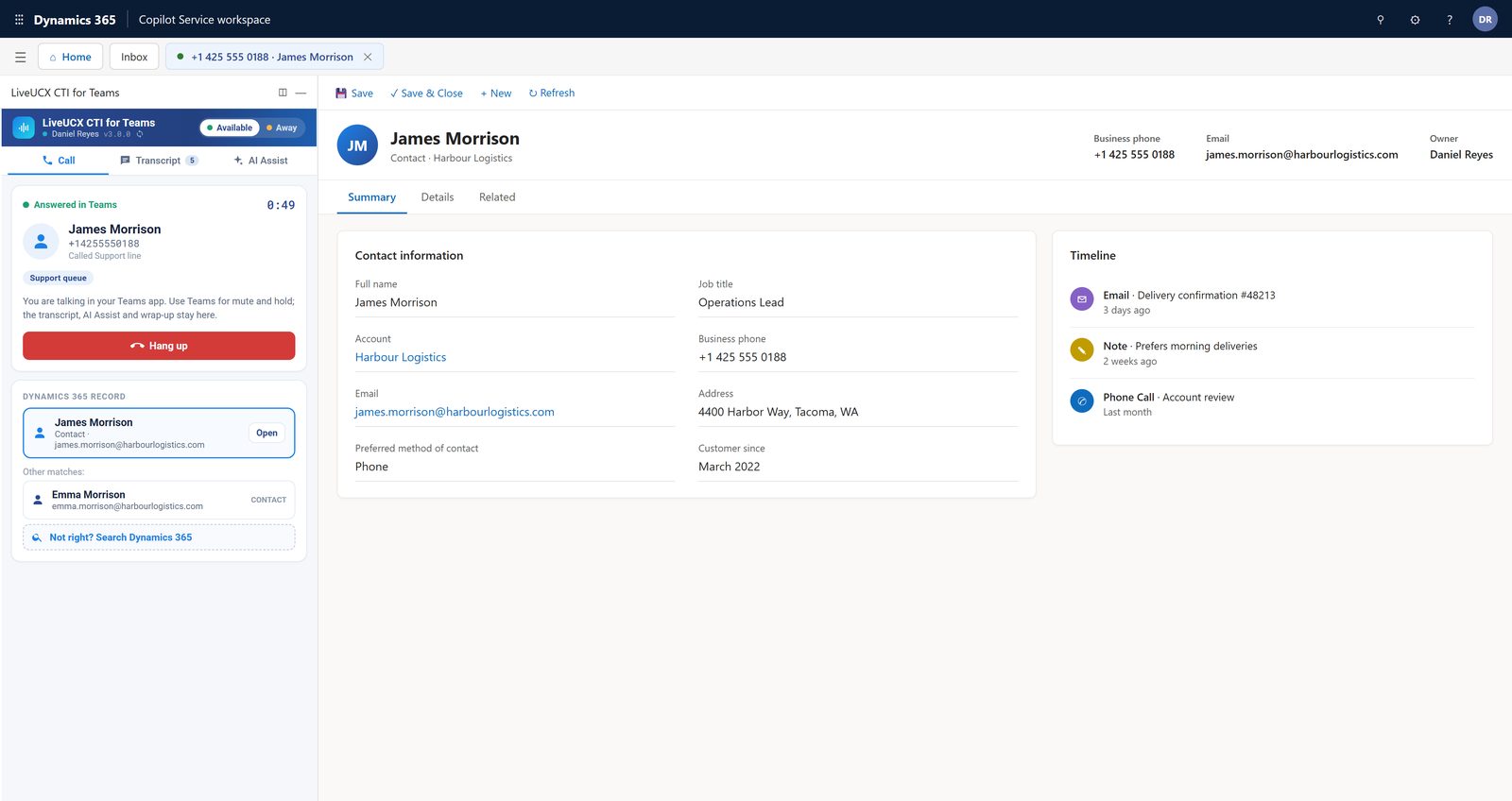
Calls ring in the Dynamics 365 panel and, for each agent you choose, in the Microsoft Teams app on desktop or mobile. The first to answer takes the call and the other ring stops. Picked up in Teams? The panel shows Answered in Teams, and the transcript, wrap-up and logging carry on as normal.
Live transcript, wrap-up and automatic Phone Call logging
Every Teams call answered through LiveUCX ends up in Dynamics 365, which is the part most Teams Phone setups miss.
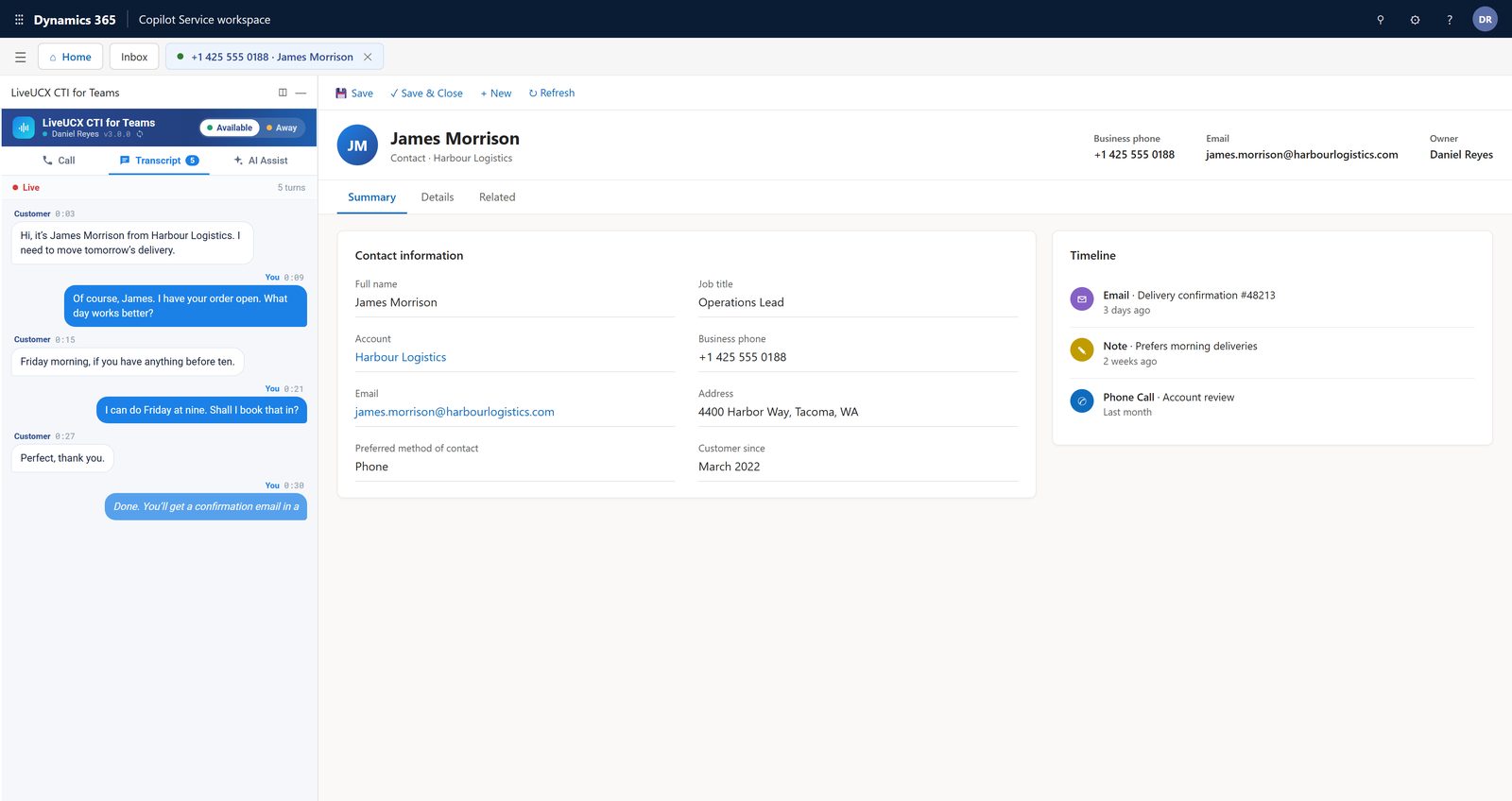
Customer and agent are transcribed as they speak, right beside the customer's record, so nobody has to scribble notes mid-call.
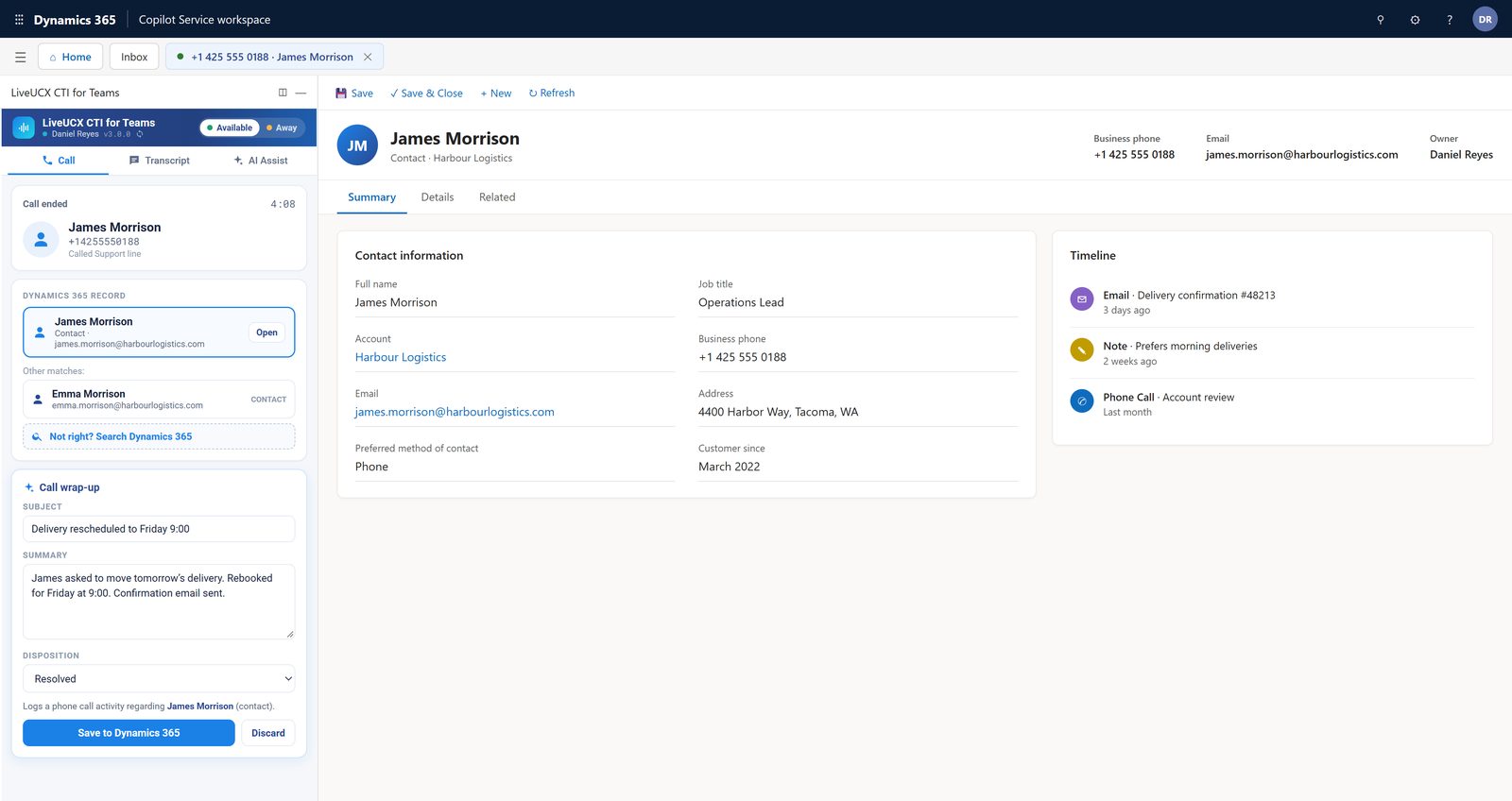
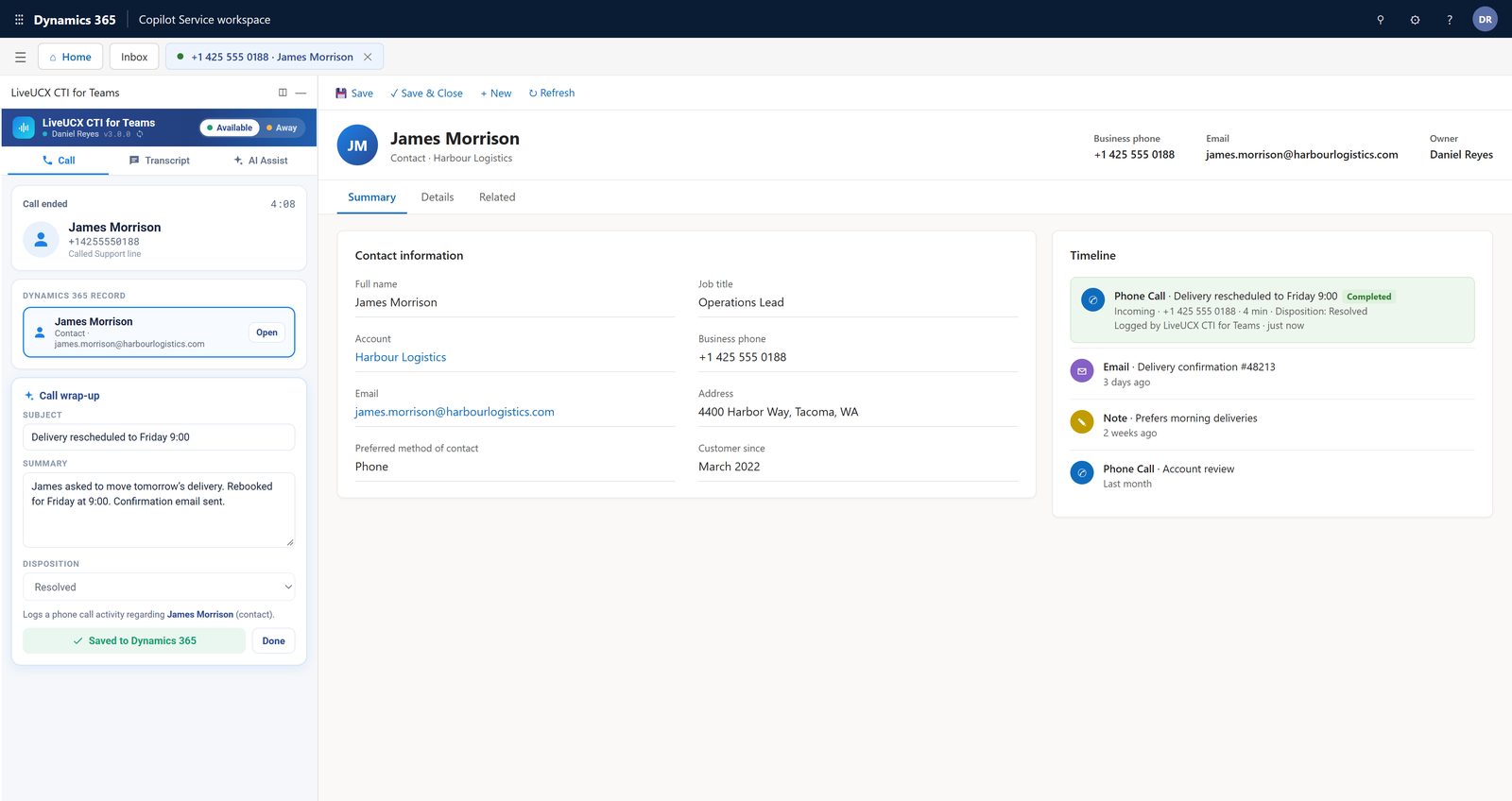
The wrap-up card shows which contact the call will be logged against. Save, and a completed Phone Call activity lands on the timeline with the subject, notes, duration and disposition.

Live summaries and suggested actions are available as an optional extra. AI Assist is configurable per deployment and stays off unless you switch it on.
Presence that agrees with Teams
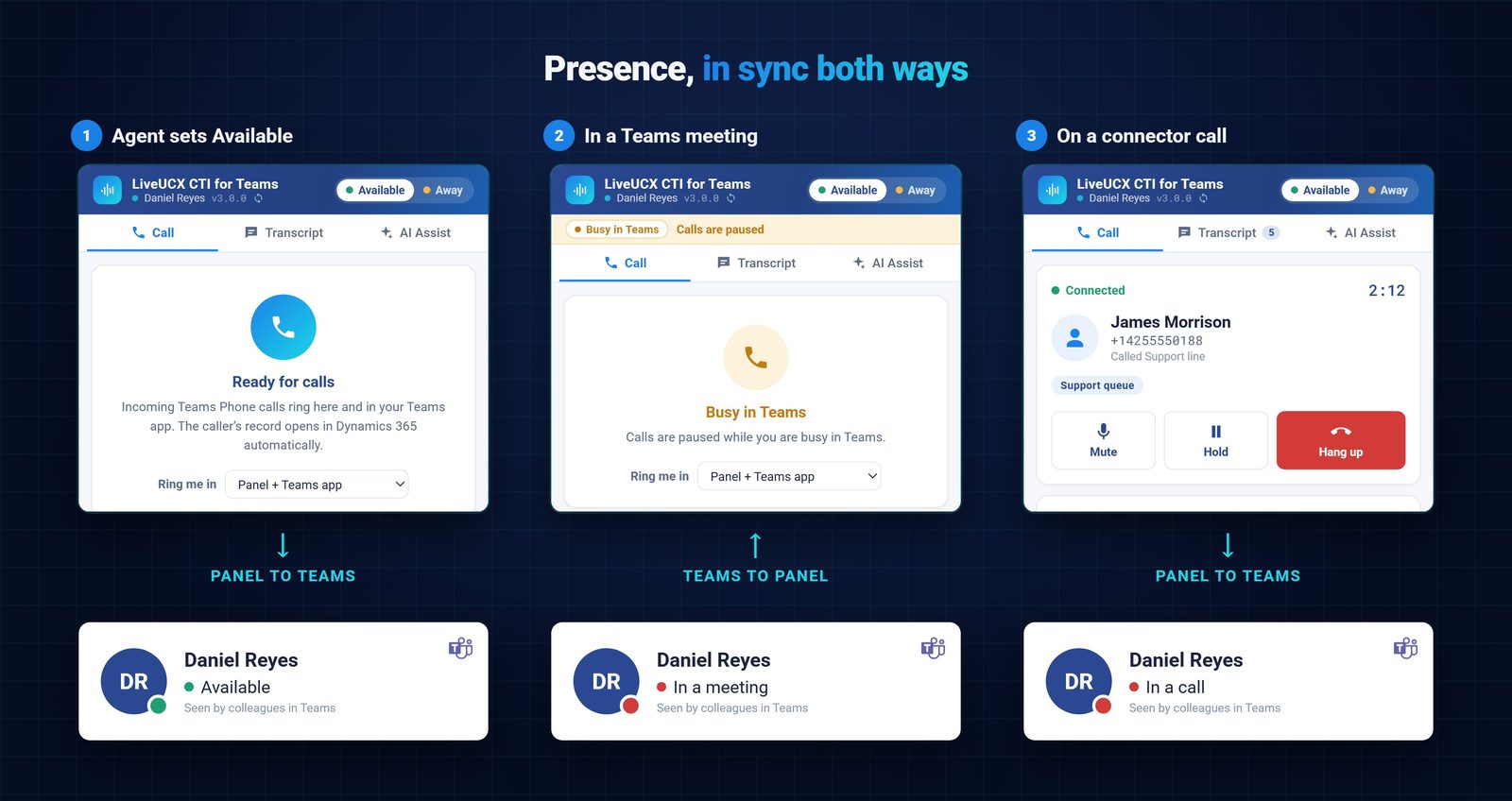
Presence stays in sync both ways. Set Available or Away in the panel and Teams shows it. Join a Teams meeting and the panel shows Busy in Teams and pauses calls, so nobody rings an agent who is presenting. While an agent is on a call, colleagues see In a call in Teams.
Teams dialer, Dynamics 365 Contact Center, or a CTI panel?
There is more than one way to take Teams calls in Dynamics 365, and they suit different teams. Here is the honest version. Microsoft documents its own option in Configure Teams Phone in the voice channel.
Microsoft's built-in calling for sellers, who place and take their own calls inside Dynamics 365 Sales. A good fit for individual seller calling, rather than shared service numbers with queues and routing.
Microsoft's own contact-centre platform, which can now use Teams Phone in its voice channel. The right choice if you are adopting a full Microsoft contact centre, with the licensing and setup that come with it.
For service teams answering inbound calls to shared Teams numbers in the Customer Service workspace. Greeting, queues, skills routing, screen pop, live transcript and Phone Call logging, on the Teams Phone numbers and licences you already have.
What you need: Teams Phone, numbers and Dynamics 365
LiveUCX CTI for Teams uses the Teams Phone numbers and licences you already have. If your agents can already make and take Teams Phone calls and work in Dynamics 365 Customer Service, you have most of it.

Each agent who takes calls needs Microsoft Teams Phone, which is what lets their Teams app ring alongside the Dynamics 365 panel.
The number your customers call, through Operator Connect or a Microsoft Calling Plan. Each number becomes its own queue.
Agents working in the Customer Service workspace or Copilot Service workspace, where the LiveUCX panel sits beside the customer's record.
Where your call data lives
LiveUCX CTI for Teams is hosted in Australia, so call data stays onshore for Australian data residency. The Phone Call activity, notes and disposition are written into your own Dynamics 365 organisation, under your retention and access rules. More on how we handle data on our security page.
Common questions
Yes. With LiveUCX CTI for Teams, calls to your Teams Phone numbers ring in a panel inside the Dynamics 365 Customer Service workspace, with screen pop, live transcript and automatic Phone Call logging.
Teams Phone handles the calls and numbers. LiveUCX adds what a service team needs on top: a greeting, queues per number, skills-based longest-idle routing, hold music with queue position, and the customer's record on screen.
Yes. Whether the agent answers in the Dynamics 365 panel or in the Teams app, the call is logged as a completed Phone Call activity on the contact, with notes, duration and disposition.
LiveUCX looks up the caller's number the moment the call is offered. One match opens the contact, several show a picker, and no match opens a new contact form with the number already filled in.
No. LiveUCX CTI for Teams uses the Teams Phone service numbers you already have.
Yes. Calls can ring in the Dynamics 365 panel and in the agent's Teams app on desktop or mobile, and whichever answers first takes the call.
Yes, both ways. Available or Away in the panel shows in Teams. A Teams meeting shows as Busy in Teams and pauses calls. Colleagues see "In a call" during a call.
AI Assist (live summaries and suggested actions) is configurable per deployment and switched off unless you turn it on.
In Australia, for Australian data residency.
The Teams dialer is for sellers placing and taking calls. LiveUCX CTI for Teams is for service teams answering inbound calls to shared numbers, with queues, routing, screen pop and wrap-up.
See it on your own Teams Phone and Dynamics 365
Book a 30-minute demo and we'll show a Teams Phone call being queued, routed, screen-popped and logged inside Dynamics 365. Using Amazon Connect or NICE CXone instead? See AWS Connect for Dynamics 365 or NICE CXone for Dynamics 365.